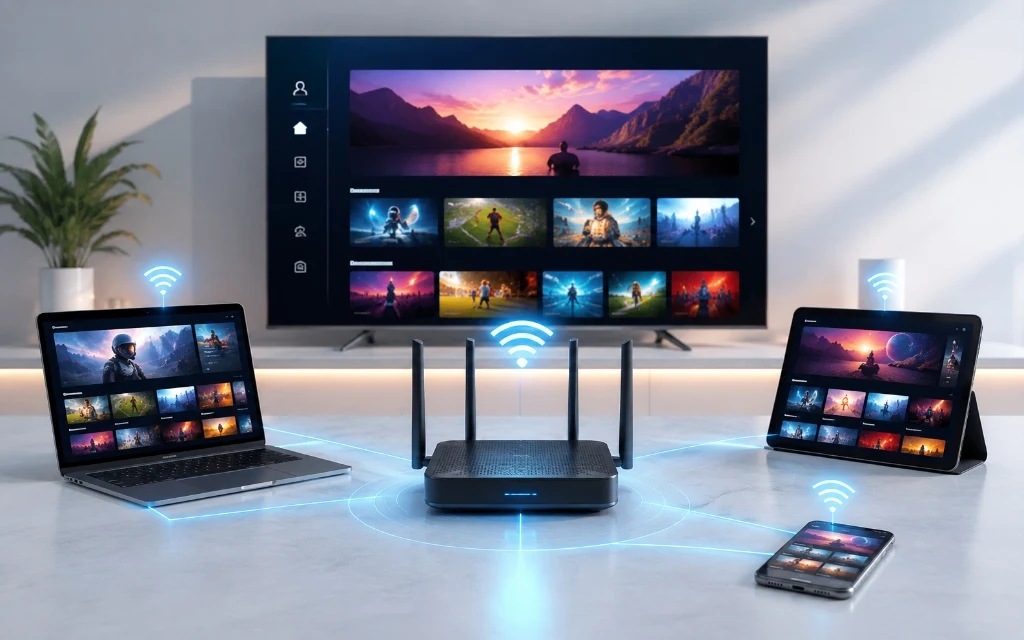
Setting up IPTV does not need to be complicated. In most cases, you need three things: a compatible device, a suitable IPTV player and valid login details or a playlist supplied by your provider. The exact screens vary by device, but the underlying process is usually the same: install the player, add your service details, allow the playlist to load, then organise your channels and EPG.
If you are still comparing services before setup, see our Best IPTV UK guide. If you already have a subscription, use the steps below to get started on your preferred device.
What Do You Need Before Setting Up IPTV?
Prepare these items before opening your IPTV app. Having everything ready makes setup faster and reduces avoidable login errors.
An active IPTV subscription or trial with valid access details.
A compatible streaming device such as Firestick, Android TV, Smart TV, phone, tablet or computer.
A stable broadband connection.
A compatible IPTV player or application.
Your provider's login information, such as Xtream Codes details or an M3U playlist URL.
A TV or display with the correct HDMI input if you are using an external streaming device.
What Are Xtream Codes and M3U?
IPTV providers commonly deliver access in one of two formats. Xtream Codes normally uses a server address, username and password. An M3U playlist is usually provided as a URL that an IPTV player reads to build the available channel list.
Use the format supplied by your provider. Do not paste your credentials into random websites or unfamiliar applications, and keep your login details private.
IPTV Setup at a Glance
Device
Common Player Route
Typical Difficulty
Best First Check
Amazon Firestick
TiViMate or another compatible player
Easy
Install the player and add your credentials
Android TV / Google TV
TiViMate or another compatible player
Easy
Use the official app store where available
Samsung Smart TV
Compatible Smart TV IPTV app
Moderate
Check app availability for your TV model
LG Smart TV
Compatible Smart TV IPTV app
Moderate
Check the LG Content Store
iPhone / iPad
Compatible iOS IPTV player
Easy
Use an App Store player
Android phone / tablet
Compatible Android IPTV player
Easy
Use a trusted app source
Windows / Mac
Compatible desktop player
Easy
Use a reputable IPTV player
How to Set Up IPTV on Firestick
Firestick is a popular choice because it turns a television with an HDMI port into a streaming device. The exact app available can vary, so use a player that is compatible with your Firestick and obtain it through a legitimate source.
Step 1: Connect Your Firestick - Plug the Firestick into an available HDMI port, connect its power supply and select the correct HDMI input on your television.
Step 2: Connect to Wi-Fi - Follow the Firestick setup screen to connect to your home network. A stable connection is especially important for live TV and high-resolution streams.
Step 3: Install a Compatible IPTV Player - Open the appropriate app store or use the installation method documented by the player developer. Avoid unofficial APKs from unknown websites.
Step 4: Add Your IPTV Details - Open the player and choose the option to add a playlist or account. Depending on the provider, you may enter Xtream Codes details or an M3U playlist URL.
Step 5: Wait for the Playlist to Load - Large channel lists can take longer to organise. Give the player time to download channels, categories and EPG data.
Step 6: Test Live TV and EPG - Open a few of your favourite channels, then check the EPG, channel categories and VOD if your plan includes it.
Samsung televisions use the Tizen platform, so the available IPTV applications can differ from Android TV. Before installing anything, check your television's current app store and confirm that the application supports your model.
Open Samsung Smart Hub or the TV's app store.
Search for a compatible IPTV player.
Install the application from the available store.
Open the player and choose its account, playlist or Xtream Codes option.
Enter the server address, username and password or paste the supplied M3U URL.
Allow the playlist and EPG to load.
Test several channels and the VOD section if included.
LG Smart TVs use webOS, so the available IPTV apps are different from Android TV. Use the LG Content Store to identify compatible applications for your specific model and region.
Open the LG Content Store.
Search for a compatible IPTV application.
Install the application and open it.
Choose the playlist or account setup option.
Enter the credentials or playlist URL supplied by your provider.
Save the configuration and allow the channel list to load.
Check live TV, EPG and VOD where available.
How to Set Up IPTV on Android TV & Google TV
Android TV and Google TV generally provide a straightforward IPTV setup because compatible applications can often be installed from the Google Play Store.
Open Google Play Store.
Search for a compatible IPTV player.
Install the player and open it.
Choose Xtream Codes, M3U or the connection method supported by your provider.
Enter your details carefully.
Wait for the playlist, categories and EPG to load.
Open Live TV and test several channels.
How to Set Up IPTV on iPhone & iPad
On iPhone and iPad, install a compatible IPTV player through the official App Store. Once installed, use the connection method supported by your provider.
Open the App Store.
Install a compatible IPTV player.
Open the application and select its add-account or add-playlist option.
Enter your Xtream Codes information or M3U playlist URL.
Save the account and wait for the channel list to synchronise.
The Android setup is similar to Android TV, although the interface may be designed for touch rather than a remote control.
Install a compatible IPTV player from a trusted app source.
Open the player and add a playlist or account.
Enter your supplied credentials.
Allow the playlist and EPG to load.
Test playback using Wi-Fi first, then test mobile data only if your plan and data allowance permit it.
How to Set Up IPTV on Windows or Mac
Computer users can use a compatible media player or IPTV application that supports their provider's playlist format. For an M3U URL, choose a reputable application that supports network playlists.
Install a trusted media or IPTV player.
Open the network-stream or playlist option.
Paste the M3U URL if your provider supplied one.
Allow the playlist to load.
Use the playlist panel to select a channel.
Adjust the player window and playback settings to suit your display.
How to Use IPTV With TiViMate
TiViMate is a popular IPTV player for compatible Android-based devices. The player does not normally provide the TV content itself; you add a compatible IPTV service or playlist to it.
Install TiViMate through an appropriate official or recognised distribution route for your device.
Open TiViMate and select Add Playlist.
Choose the connection method supported by your provider.
For Xtream Codes, enter the server URL, username and password.
For M3U, paste the playlist URL.
Wait for the playlist to load.
Open the EPG or TV Guide after the channel data has synchronised.
Add frequently watched channels to Favourites for easier navigation.
Successful login does not necessarily mean the setup is fully optimised. Run a quick checklist before deciding whether everything is working correctly.
Open several UK live TV channels.
Test at least one sports or high-motion channel if included in your plan.
Open the EPG and check whether programme information appears.
Test VOD if your subscription includes it.
Switch between channels to check responsiveness.
Try both HD and higher-resolution content where available.
Check audio and subtitles where provided.
Test the service during the times you normally watch.
Connection requirements vary by stream quality, device and network conditions. As a practical starting point, many households can use the following ranges:
Streaming Quality
Practical Starting Point
SD
Around 5 Mbps or more
HD
Around 10 Mbps or more
Full HD
Around 15–25 Mbps
4K
Around 25–50 Mbps or more
These are guidelines, not guarantees. Wi-Fi interference, household traffic, router performance, device capability and the source stream can all affect playback.
How to Reduce IPTV Buffering
Buffering is not always caused by the IPTV service. Work through the basics before changing advanced settings.
Restart the router and streaming device.
Move the device closer to the Wi-Fi router or use a wired Ethernet connection where practical.
Pause large downloads and other high-bandwidth activity on the network.
Test another channel to determine whether the problem affects one stream or many.
Restart or update the IPTV player.
Clear the player's cache if the application supports that option.
Check whether the issue occurs at particular times of day.
Test another network if available to help identify whether the problem is local to your connection.
A VPN is not a universal fix for buffering. It may be useful in some legitimate network or privacy situations, but it can also add latency. Test the underlying connection first rather than assuming a VPN will solve every playback problem.
Common IPTV Setup Problems & Fixes
Problem
What to Try
Login details rejected
Re-check the server URL, username and password. Credentials are often case-sensitive. Copy them carefully rather than typing from memory.
Empty channel list
Check that the playlist URL or server details are correct and allow time for the playlist to finish loading.
EPG not showing
Refresh the EPG inside the player and check whether your provider supplies EPG data for the playlist.
App unavailable on your TV
Check the TV operating system and app store. A different compatible player or external streaming device may be required.
Playback keeps buffering
Test your internet connection, restart the router, reduce network congestion and compare several channels.
Video works but audio does not
Check the TV volume, player audio track and device audio output. Try another channel to identify whether the issue is stream-specific.
VOD is missing
Confirm that VOD is included in your subscription and refresh the library inside the player.
Channels are duplicated
Refresh the playlist and review the player's group or duplicate-channel settings if available.
App or External Streaming Stick?
If your Smart TV supports a suitable IPTV application, using the built-in platform can be convenient. An external device can be useful when the TV's operating system has limited app support, when you prefer a particular player, or when the television hardware is becoming slow.
Use a native TV app when it provides the features and performance you need.
Consider Firestick or another compatible streaming device when your TV has limited IPTV app options.
Choose based on compatibility, ease of use, performance and long-term support rather than brand popularity alone.
IPTV Setup Security & Privacy Tips
Keep your IPTV username and password private.
Use official or reputable app distribution channels whenever possible.
Do not enter IPTV credentials into an unrelated website simply because it claims to 'activate' a player.
Use a strong password for accounts that support password management.
Review app permissions before installation.
Keep your TV, streaming device and IPTV application updated.
Read the provider's privacy policy and terms before submitting personal information.
Frequently Asked Questions About IPTV Setup
You normally need a compatible device, a stable internet connection, a compatible IPTV player and valid service credentials or a playlist supplied by your provider.
Yes, if the IPTV service and player support your Firestick. Install a compatible player, add your supplied credentials and allow the playlist to load.
Often, yes. Availability depends on the TV operating system, model and compatible IPTV applications.
Use a reputable player that is compatible with your device and supports the connection format supplied by your provider. TiViMate is one option for compatible Android-based devices.
Compatible IPTV applications may be available through Samsung's app ecosystem. Availability can vary by model and region.
Compatible IPTV applications may be available through the LG Content Store, depending on the TV model and region.
Open a compatible IPTV player, choose its M3U or playlist option and paste the M3U URL supplied by your provider.
In a compatible player, choose Xtream Codes or Xtream Codes API and enter the server URL, username and password supplied by your provider.
Common causes include incorrect credentials, an invalid playlist URL, a connection problem or a playlist that has not finished loading.
Speed is only one factor. Wi-Fi interference, router load, network congestion, device limitations and the source stream can all affect playback.
Compatible IPTV players are available for iOS devices. Install a suitable player and use the connection details supported by your provider.
Yes, where a compatible media or IPTV player supports your provider's playlist format.
No universal VPN requirement exists. A VPN can be useful for privacy or certain legitimate network situations, but it is not a guaranteed solution for buffering or access problems.
IPTV is a method of delivering content over internet networks and is legal technology. The important issue is whether the provider has the appropriate rights or permissions to distribute the copyrighted content it offers.
Use a well-supported player, organise favourite channels, keep EPG data refreshed, maintain a stable connection and keep your device software updated.
Start with the device you actually plan to use, install a compatible player from a trusted source, enter the credentials supplied by your provider and test the channels that matter most to you. If you are still deciding whether the service fits your needs, a short trial can be a sensible way to check compatibility before choosing a longer plan.
See the IPTV Free Trial UK page if you want to test the service before committing to a longer subscription.