What Is TiviMate IPTV?

TiviMate is a media player for IPTV playlists. Its remote-friendly interface makes it particularly useful on Fire TV, Android TV and other compatible television devices. You can connect a supported playlist to organise live channels, programme information and other content supplied by your IPTV provider.

The distinction between player and provider is important: installing TiviMate does not automatically provide channels. The IPTV provider supplies the playlist or account credentials, while TiviMate handles the interface and playback.

Why Use TiviMate for IPTV?

  • TV-friendly remote navigation.
  • Support for common IPTV playlist formats, depending on the current app version.
  • Favourites for frequently watched channels.
  • EPG support when guide data is supplied.
  • Channel categories and playlist organisation.
  • Playback and interface settings for compatible devices.
  • Suitable for many Android-based TV and Fire TV setups.
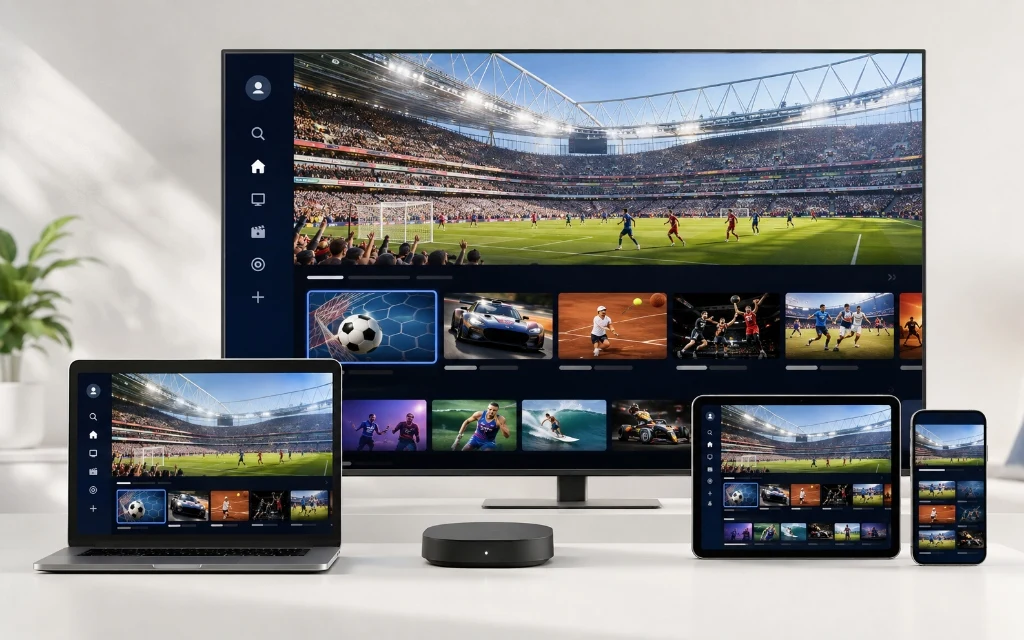
Multi-device setup showing TiviMate app on smart TV and tablet

What You Need Before Setting Up TiviMate

  • Compatible Android TV, Google TV or Fire TV hardware.
  • Stable internet connection.
  • Current TiviMate installation.
  • Active IPTV subscription or trial.
  • Xtream Codes credentials or an M3U playlist supplied by your provider.
  • Separate EPG/XMLTV URL if your provider supplies one.

For a wider device-by-device walkthrough, see the IPTV Setup Guide.

TiviMate Setup at a Glance

Stage Action Result
1 Install TiviMate using a supported route Player ready
2 Add Xtream Codes or M3U Playlist connected
3 Wait for synchronisation Channels/categories load
4 Refresh/configure EPG TV guide available
5 Create favourites Faster navigation
6 Test several channels Performance checked

How to Install TiviMate on Firestick

Fire TV installation routes can change, so use a current and trusted method and verify availability for your particular device. Once the player is installed, the playlist setup is straightforward.

  • Connect the Firestick to the TV and internet.
  • Open the current supported app installation route available on your Fire TV.
  • Install and open TiviMate.
  • Complete the initial launch.
  • Select Add Playlist.

For the wider Firestick workflow, read our Firestick IPTV guide.

How to Install TiviMate on Android TV or Google TV

  • Connect the device to the internet.
  • Open Google Play Store.
  • Search for TiviMate and verify the current listing.
  • Install and launch the application.
  • Select Add Playlist.

Choose the connection method matching your provider details.

How to Add IPTV to TiviMate With Xtream Codes

Xtream Codes normally uses a server URL, username and password. The exact labels can vary slightly by app version.

  • Open TiviMate and choose Add Playlist.
  • Select Xtream Codes API if available.
  • Enter the server URL supplied by your provider.
  • Enter username and password.
  • Confirm the details.
  • Wait for Live TV and categories to load.

Copy credentials carefully. An extra space, missing character or incorrect server address can prevent a playlist from loading.

How to Add an M3U Playlist to TiviMate

  • Open TiviMate.
  • Select Add Playlist.
  • Choose M3U Playlist if available.
  • Paste the complete M3U URL supplied by your provider.
  • Add a separate EPG URL if your provider supplies one and the app provides an EPG field.
  • Save and wait for the playlist to synchronise.

Do not paste private IPTV credentials into unrelated third-party websites just to activate or convert a playlist.

Xtream Codes vs M3U

Factor Xtream Codes M3U
Credentials Server + username + password Usually one playlist URL
Setup Separate fields Paste URL
EPG May be supplied through account data May require separate EPG URL
Best for Account-based setup Providers issuing playlist URLs
Common issue Wrong login/server Broken or outdated URL

How to Set Up the TiviMate EPG

EPG means Electronic Programme Guide. When guide data is available, it gives your channel list a familiar TV-guide layout with programme names and schedules.

  • Open TiviMate settings and locate EPG.
  • Check whether guide data loads automatically.
  • If your provider supplied a separate XMLTV/EPG URL, add it through the relevant playlist or EPG setting.
  • Refresh/update the EPG.
  • Allow the update to finish before troubleshooting missing listings.

EPG availability depends on the playlist and provider. A blank guide does not automatically mean TiviMate is faulty.

How to Organise Channels in TiviMate

  • Add regular channels to Favourites.
  • Use channel groups/categories.
  • Hide unwanted groups where supported.
  • Keep frequently watched UK categories easy to reach.
  • Refresh the playlist if categories become outdated.

For UK channel categories, visit our UK IPTV Channels List.

TiviMate Playback & Performance Settings

Start with default playback settings and change one option at a time. Hardware decoding can be useful on compatible devices, while a channel-specific playback option can sometimes help when only one stream behaves differently.

  • Keep hardware decoding enabled where supported and stable.
  • Start with the default buffer configuration.
  • If one channel fails while others play, test the available player/decoder option for that channel.
  • Avoid extreme buffer settings without a specific reason.
  • Restart TiviMate after major configuration changes.

How to Reduce IPTV Buffering in TiviMate

  • Check your internet connection.
  • Restart the device and router.
  • Test another channel.
  • Use Ethernet where practical if Wi-Fi is unstable.
  • Pause heavy downloads and other streams.
  • Keep the device and app updated.
  • Clear app cache if TiviMate becomes unusually slow.
  • If multiple channels and devices fail, contact the provider.

For more device-level troubleshooting, see our Firestick IPTV and IPTV Setup Guide pages.

Recommended Internet Speed for TiviMate IPTV

Quality Practical starting point
SD Around 5 Mbps+
HD Around 10 Mbps+
Full HD Around 15–25 Mbps
4K Around 25–50 Mbps or more

These are practical guidelines, not guarantees. Wi-Fi quality, household traffic, device performance, compression and source-stream conditions can all affect playback.

TiviMate on Firestick vs Android TV

Feature Firestick Android TV / Google TV
Installation Fire TV-specific route Usually Google Play
Remote control Yes Yes
EPG Supported where data is available Supported where data is available
Portability High Depends on device
Best for Fire TV owners Android TV/Google TV owners

Can You Use TiviMate on Samsung or LG Smart TV?

TiviMate is designed for compatible Android-based devices and is not a native IPTV player for Samsung Tizen or LG webOS. If you want the TiviMate interface on those televisions, an external compatible Android-based streaming device can be used.

For native Samsung and LG setup options, read our Smart TV IPTV Guide.

TiviMate Premium: Is It Required?

TiviMate has free functionality and optional premium features, with the exact offering subject to the developer's current terms. Check the current official app listing for up-to-date features and pricing.

  • TiviMate Premium is separate from an IPTV subscription.
  • Basic playback may be enough for some users.
  • Advanced features can be useful depending on how you organise and use your playlists.

TiviMate Troubleshooting

Problem First checks
No channels Recheck server, username/password or M3U URL
Login fails Copy credentials again and remove accidental spaces
EPG blank Refresh EPG and check provider guide data
Buffering Test network and another channel
App freezes Restart device and clear cache
One channel fails Test other channels
Outdated playlist Refresh playlist and EPG
VOD missing Confirm VOD is included in your plan

TiviMate Setup Checklist

  • Compatible device ready.
  • Stable internet confirmed.
  • Current TiviMate installation.
  • Active IPTV subscription/trial.
  • Xtream Codes or M3U details copied accurately.
  • Playlist loaded.
  • EPG checked.
  • Favourites organised.
  • Several channels tested.

TiviMate IPTV FAQs

TiviMate is an IPTV player for compatible Android-based devices. It organises and plays compatible IPTV playlists but does not supply channels itself.

No. You need a separate IPTV service or playlist.

Yes, on compatible Fire TV devices using a current supported installation route.

Yes, where the current app is supported by the Android TV device.

Compatible Google TV devices can support TiviMate where the application is available.

TiviMate is not a native Samsung Tizen application. An external compatible Android-based device is an alternative.

TiviMate is not a native LG webOS application. An external compatible device can be used.

Open Add Playlist, choose Xtream Codes API if available, then enter the server URL, username and password supplied by your provider.

Open Add Playlist, choose the M3U option if available, paste the complete playlist URL and save it.

Use the relevant EPG or playlist setting for a separate XMLTV/EPG URL supplied by your provider, then refresh the guide.

Refresh the guide and check whether your playlist includes EPG data or whether a separate EPG URL is required.

Weak Wi-Fi, network congestion, device load, player settings or a source-stream issue can cause buffering.

Around 10 Mbps is a practical starting point for HD; 4K commonly benefits from roughly 25–50 Mbps or more.

Yes, when the device, TV, network, player and source stream all support 4K.

No. Channels come from the IPTV playlist or service you connect.

TiviMate offers free functionality and optional premium features. Check the current official listing for details.

Not necessarily. It depends on which features you need.

Often yes, subject to the provider's terms and connection limits.

It can provide playback settings, but it cannot fix a poor internet connection or unstable source stream.

IPTV is a technology for delivering content over internet networks. The legal issue is whether the provider has the appropriate rights or permissions to distribute the content it offers.

ZynaroTV offers trial options intended to let customers assess compatibility and performance. Check the current trial terms before ordering.

View All IPTV FAQs

Best Practice for TiviMate IPTV Setup

For a clean setup, use a supported Android-based device, install the current TiviMate version from a trusted source, and copy your provider credentials accurately. Load the playlist first, confirm live TV works, then configure EPG and favourites. This makes it easier to identify whether a problem comes from the application, network or IPTV service.

If you are comparing plans, see Cheapest IPTV UK or use the IPTV Free Trial UK page before choosing a longer plan.

Start 12-Hour Trial (WhatsApp) Compare Pricing Plans ➔