What Is Smart TV IPTV?

Smart TV IPTV means accessing an IPTV service through an internet-connected television using a compatible IPTV player. The TV provides the screen and operating system, the player manages the playlist and interface, and the provider supplies the service access. Internet quality, TV hardware, the application and the source stream can all affect playback.
Which Smart TVs Can Use IPTV?

Platform Examples Typical route
Samsung Tizen Samsung Smart TVs Compatible app from Samsung app ecosystem
LG webOS LG Smart TVs Compatible app from LG Content Store
Android TV Selected Sony, Philips, TCL, Hisense Compatible app via Google Play
Google TV Selected newer TVs/devices Compatible app via Google Play
Other platforms Model dependent Check app store or use external device

What You Need Before Setting Up IPTV

  • A compatible Smart TV connected to the internet.
  • An active IPTV subscription or trial.
  • Xtream Codes credentials or an M3U playlist supplied by your provider.
  • A compatible IPTV player.
  • A stable broadband connection.
  • Your TV remote.

For the wider device overview, read the IPTV Setup Guide.

Smart TV IPTV Setup: Quick Steps

  • Check your TV operating system.
  • Connect the TV to reliable Wi-Fi or Ethernet.
  • Open the TV's official app store.
  • Install a compatible IPTV player.
  • Add your provider's Xtream Codes or M3U details.
  • Allow the playlist and EPG to load.
  • Test live channels and VOD where included.
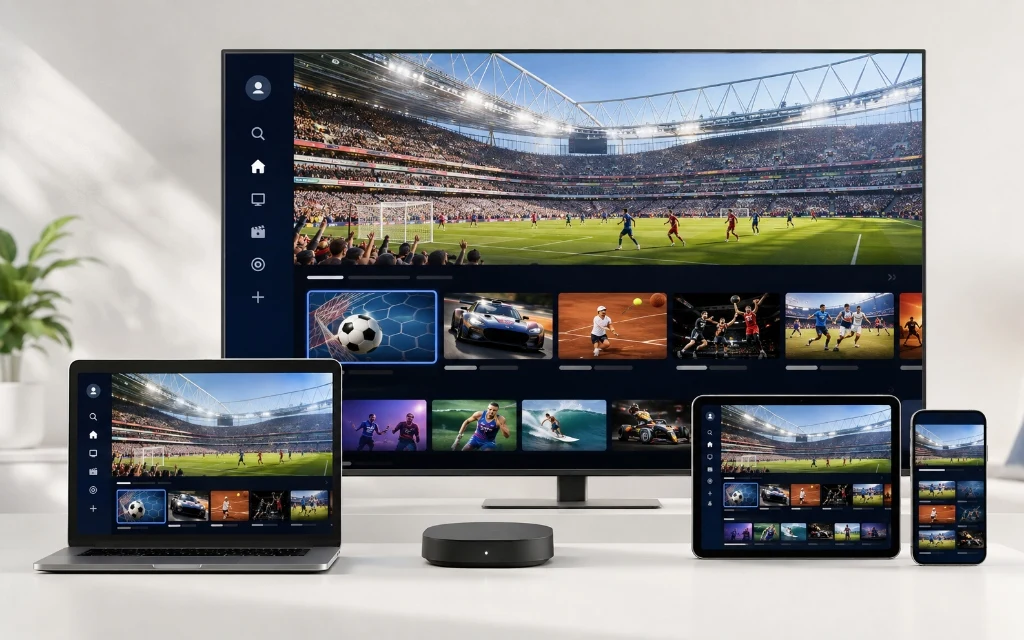
Smart TV, laptop, tablet and smartphone showing a multi-device streaming setup

How to Set Up IPTV on Samsung Smart TV

Samsung Smart TVs use Tizen, so Android APK installation is not the normal route. Start with the Samsung TV's own app ecosystem and check which IPTV players are currently available for your model and region.

  • Press Home on the Samsung remote.
  • Open Apps.
  • Search for a compatible IPTV player.
  • Install and open the application.
  • Choose its login or playlist option.
  • Enter Xtream Codes details or an M3U URL if supported.
  • Wait for channels and EPG data to load.
  • Test several channels before changing advanced settings.

App availability can vary by model, region and software version. If your preferred player is unavailable, an external streaming device is another option. See the dedicated Firestick IPTV guide for that alternative.

How to Set Up IPTV on LG Smart TV

LG Smart TVs use webOS. Check the LG Content Store for a compatible IPTV player because available apps can vary by model and region.

  • Press Home on the LG remote.
  • Open the LG Content Store.
  • Search for a compatible IPTV player.
  • Install and launch it.
  • Choose Add Playlist or Add Account.
  • Enter the M3U URL or Xtream Codes information supplied by your provider.
  • Save the connection and allow the playlist to synchronise.
  • Test Live TV and EPG.

How to Set Up IPTV on Android TV

Android TV can be convenient for IPTV because compatible applications can often be installed directly through Google Play.

  • Open Google Play Store.
  • Search for a compatible IPTV player.
  • Install and open it.
  • Choose Add Playlist or Add Account.
  • Select Xtream Codes or M3U where supported.
  • Enter your provider details.
  • Wait for channels and EPG to load.
  • Test live TV and VOD where available.

How to Set Up IPTV on Google TV

Google TV uses the Android TV foundation but presents a different interface. On supported devices, the setup is similar: install a compatible player from Google Play, add your provider details and allow the playlist to synchronise.

  • Open Apps or Google Play.
  • Find a compatible IPTV player.
  • Install and launch it.
  • Add Xtream Codes or M3U details.
  • Refresh EPG if needed.
  • Test channels and create favourites.

Best IPTV Player Approach for Smart TV

There is no universal best IPTV player. The right choice depends on the TV platform, the features you need and the connection format supported by your provider.

Player route Best fit Key point
Native Smart TV IPTV app Samsung/LG Simple when a suitable app is available
TiViMate Android TV / compatible Fire TV Strong TV-style interface, EPG and favourites
M3U-compatible player Many platforms Useful for remote playlist URLs
Xtream Codes-compatible player Many modern players Convenient account-based login

For TiViMate details, see the TiviMate App Guide.

How to Add an M3U Playlist to Smart TV

If your IPTV player supports remote M3U playlists, open its Add Playlist option, paste the M3U URL supplied by your provider, save it and wait for the channel list to synchronise. Menu names differ between applications.

Never paste private credentials into an unrelated website simply because it claims to activate IPTV.

How to Add Xtream Codes to Smart TV

  • Open a compatible IPTV player.
  • Choose Xtream Codes, Xtream Codes API or Add User.
  • Enter the server URL.
  • Enter username and password.
  • Save the account.
  • Wait for categories and channels to load.
  • Refresh EPG if programme information is missing.

Smart TV IPTV or Firestick IPTV?

Native Smart TV IPTV is convenient when the right player is available. A Firestick can be more flexible when your TV has limited app choices, when you prefer a particular player or when you want a portable setup that can move between compatible TVs.

Factor Native Smart TV External Firestick
Extra hardware No Yes
App choice Platform dependent Generally broader
Portability Limited Easy to move
Upgrade path TV dependent Replace device
Best for Simple built-in setup Greater app flexibility

Read the Firestick IPTV guide for the external-device setup.

Internet Speed for Smart TV IPTV

Quality Practical starting point
SD Around 5 Mbps+
HD Around 10 Mbps+
Full HD Around 15–25 Mbps
4K Around 25–50 Mbps or more

These are guidelines, not guarantees. Wi-Fi interference, household traffic, router performance, device capability and the source stream can all affect playback.

How to Reduce IPTV Buffering on Smart TV

  • Restart the TV and router.
  • Test Wi-Fi signal strength or use Ethernet where practical.
  • Pause large downloads and other heavy streaming.
  • Test another channel to see whether the issue is stream-specific.
  • Restart or update the IPTV player.
  • Refresh the playlist and EPG.
  • Test at another time if problems appear only during busy periods.

Smart TV IPTV Troubleshooting

Problem First thing to try
App missing Check TV model, region and current app store
Login fails Recheck server URL, username and password
Empty channel list Check credentials/M3U and refresh playlist
EPG blank Refresh EPG and confirm provider data
Buffering Check network, router load and another channel
App freezes Restart TV and update/reinstall player
VOD missing Confirm VOD is included and refresh library
One channel fails Test other channels

EPG, Favourites & Channel Organisation

  • Use Favourites for frequently watched channels.
  • Browse categories instead of the entire playlist.
  • Refresh EPG when programme information is missing.
  • Hide unused groups if your player supports it.
  • Allow large playlists time to finish loading.

Explore the available UK categories in the UK IPTV Channels List.

Smart TV IPTV Security Tips

  • Keep IPTV credentials private.
  • Use reputable/official app stores where possible.
  • Review app permissions before installation.
  • Do not give credentials to random activation websites.
  • Keep TV software and IPTV apps updated.

Read your provider's privacy policy and terms before sharing personal information.

Smart TV IPTV FAQs

Yes, if a compatible IPTV player is available for your model and region. Install the application and add the supported credentials or playlist.

Yes, where a compatible player is available for the webOS version on your TV.

Many Sony models use Android TV or Google TV and can support compatible IPTV players through Google Play.

It depends on the operating system and model. Android TV/Google TV models generally provide more app flexibility.

Many TCL models use Android TV or Google TV and may support compatible IPTV applications.

Use a compatible native app when one is available. If app choices are limited, an external Firestick can provide another practical route.

Neither is universally better. Native IPTV is convenient; Firestick can offer broader app flexibility.

Use an IPTV player that supports M3U, open its playlist section and paste the URL supplied by your provider.

Choose an Xtream Codes/API option in a compatible player and enter the server, username and password supplied by your provider.

Weak Wi-Fi, network congestion, device limitations, player issues or a particular stream can cause buffering.

Yes. IPTV streams are delivered over an internet connection.

Yes, when the TV, player, network and source stream all support 4K.

Refresh the EPG, check player settings and confirm the provider supplies EPG data.

TiViMate is designed for compatible Android-based TV platforms and is not a native Samsung Tizen or LG webOS player.

There is no universal requirement. A VPN may be chosen for privacy or network reasons but is not a guaranteed buffering fix.

IPTV is a technology for delivering content over internet networks. The key legal issue is whether a provider has the appropriate rights or permissions to distribute the content it offers.

ZynaroTV offers trial options intended to let customers assess compatibility and performance. Check the current trial terms before ordering.

View All IPTV FAQs

Which Smart TV IPTV Setup Should You Choose?

For Samsung and LG, start with the native app store and check compatible IPTV players for your exact model. For Android TV and Google TV, Google Play often gives more flexibility. If your preferred player is unavailable or the built-in experience is restrictive, a Firestick can be a useful alternative.

Before choosing a longer plan, compare Cheapest IPTV UK or test compatibility through the IPTV Free Trial UK page.

Start 12-Hour Trial (WhatsApp) Compare Pricing Plans ➔