What Is Mobile IPTV?

Mobile IPTV is internet-delivered television watched through a smartphone or tablet rather than a traditional TV. An IPTV player provides the interface, while the IPTV provider supplies the live channels, VOD or other content available through your subscription.

The important distinction is that the player and IPTV service are separate. Installing an IPTV app does not automatically provide channels. You connect the player to your provider using a supported method such as Xtream Codes or an M3U playlist.

Can You Watch IPTV on iPhone, iPad and Android?

  • iPhone: use a compatible IPTV player available through Apple's App Store.
  • iPad: the same general iOS setup applies, with interface differences depending on the app.
  • Android phones: compatible IPTV players can generally be installed through Google Play.
  • Android tablets: use the same Android setup, with a larger-screen interface.
  • Wi-Fi and 4G/5G can both be used, provided your connection is stable enough for the selected video quality.
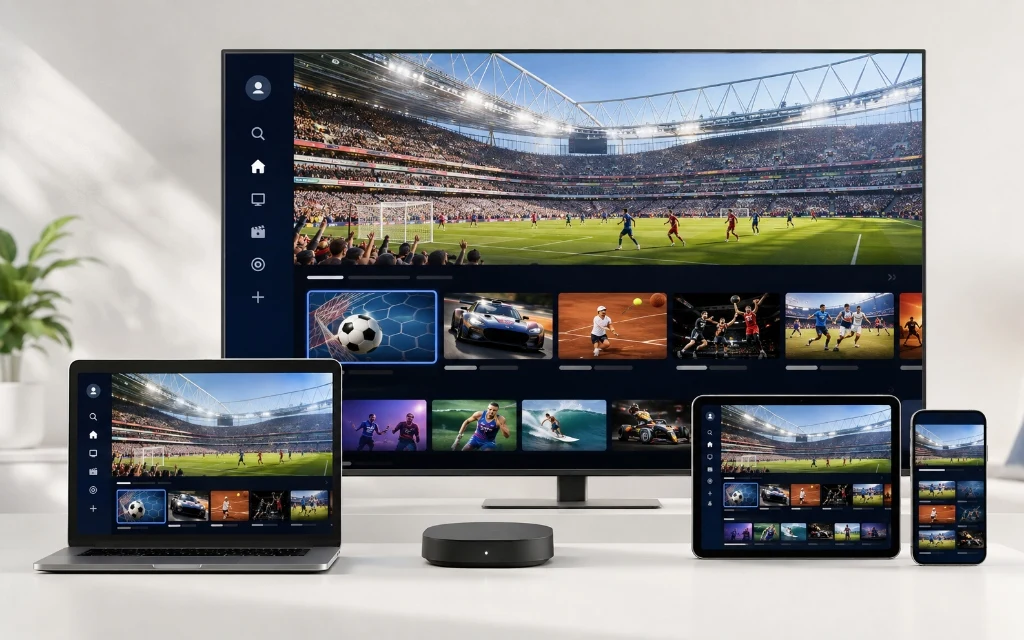
Smartphone and tablet prepared for mobile IPTV streaming setup

What You Need Before Setting Up Mobile IPTV

  • An iPhone, iPad or Android phone/tablet.
  • A compatible IPTV player installed from a trusted app store.
  • An active IPTV subscription or trial.
  • Xtream Codes credentials or an M3U playlist supplied by your provider.
  • An EPG URL if your provider supplies separate programme-guide data.
  • A stable Wi-Fi or mobile-data connection.

For the complete multi-device setup overview, see our IPTV Setup Guide.

Mobile IPTV Setup at a Glance

Step Action Result
1 Install a compatible IPTV player App ready
2 Choose Xtream Codes or M3U Connection method selected
3 Enter your provider details Playlist added
4 Wait for channels/EPG to load Content becomes available
5 Test Wi-Fi or mobile data Connection quality checked
6 Adjust quality and favourites Better everyday experience

How to Set Up IPTV on iPhone

iPhone setup is normally straightforward because compatible IPTV applications can be installed through the App Store. App names and availability can change, so search the current App Store rather than relying on an old installation video.

  • Open the Apple App Store.
  • Search for a reputable IPTV player that supports your provider's connection method.
  • Install the app and open it.
  • Choose Add User, Add Playlist or the equivalent option.
  • Select Xtream Codes/API or M3U, depending on the credentials you received.
  • Enter your provider details carefully.
  • Save the connection and wait for the playlist to load.
  • Open Live TV and test several channels.

Do not publish or share private server URLs, usernames or passwords on a public page. Customers should enter their own credentials directly inside the chosen application.

How to Set Up IPTV on iPad

The iPad follows the same basic iOS process as the iPhone. The larger screen can make channel browsing and programme guides more comfortable.

  • Open the App Store.
  • Install a compatible IPTV player.
  • Open the application.
  • Choose Xtream Codes/API or M3U.
  • Enter the credentials or playlist supplied by your provider.
  • Allow the playlist and EPG to synchronise.
  • Test Live TV and adjust playback quality if needed.

How to Set Up IPTV on Android Phone

Android gives users a broad choice of IPTV applications. Use Google Play or another trusted official source and select an app that supports the connection format provided by your IPTV service.

  • Open Google Play Store.
  • Search for a compatible IPTV player.
  • Install and launch it.
  • Choose Xtream Codes/API or M3U.
  • Enter the server/account information or playlist URL supplied by your provider.
  • Save the playlist.
  • Wait for channels and EPG information to load.
  • Test several channels before changing advanced settings.

How to Set Up IPTV on Android Tablet

Android tablets use essentially the same setup as Android phones. The larger display can make EPG navigation, channel categories and VOD browsing easier.

  • Install a compatible IPTV player from Google Play.
  • Open the application.
  • Add your Xtream Codes or M3U details.
  • Wait for the playlist to synchronise.
  • Open the TV guide and Live TV sections.
  • Create favourites for channels you use regularly.

Xtream Codes vs M3U for Mobile IPTV

Factor Xtream Codes M3U
What you enter Server URL + username + password Playlist URL
Setup style Account-based URL-based
EPG May load with account/playlist May require separate EPG URL
Best for Simple provider login Providers issuing playlist URLs
Common error Incorrect server/login details Incomplete or outdated URL

How to Add Xtream Codes on Mobile

  • Open your IPTV player.
  • Select Add User, Add Playlist or the equivalent option.
  • Choose Xtream Codes/API.
  • Enter the server URL supplied by your provider.
  • Enter username and password.
  • Confirm or save the account.
  • Wait for the Live TV and other available categories to load.

Credentials are case-sensitive in many applications. Copy them carefully and avoid adding spaces before or after the values.

How to Add an M3U Playlist on Mobile

  • Open a compatible IPTV player.
  • Choose Add Playlist or the M3U option.
  • Enter the M3U URL supplied by your IPTV provider.
  • Add an EPG URL if your provider gives one separately.
  • Save the playlist.
  • Wait for the channel list to synchronise.

Never paste private IPTV credentials into random online forms that claim to activate or convert your playlist.

How Much Data Does Mobile IPTV Use?

Mobile data consumption varies considerably with resolution, bitrate, codec and viewing time. Higher-quality streams generally use more data. For anyone using a limited mobile-data plan, Wi-Fi is usually the safer choice for long viewing sessions.

Video quality Typical data impact Best use
SD Lower Longer mobile viewing
HD Moderate Everyday phone/tablet viewing
Full HD Higher Large screens / strong connections
4K Very high Usually better suited to TV/home broadband

Actual consumption can differ substantially between streams, so treat these categories as guidance rather than fixed data rates.

Internet Speed for IPTV on Mobile

  • HD: around 10 Mbps or more is a practical starting point.
  • Full HD: around 15–25 Mbps can provide more headroom.
  • 4K: around 25–50 Mbps or more may be appropriate, depending on the stream.
  • Stability matters as much as headline speed, especially when using mobile data.

How to Reduce IPTV Buffering on iPhone & Android

  • Move closer to your Wi-Fi router if the signal is weak.
  • Switch between Wi-Fi and mobile data to identify whether the network is the problem.
  • Close bandwidth-heavy apps or downloads running in the background.
  • Restart the IPTV player.
  • Restart your phone/tablet if playback remains unstable.
  • Lower the stream quality when your connection cannot sustain the current resolution.
  • Test another channel to see whether the issue is specific to one stream.
  • Update the IPTV app and your device software where appropriate.

Mobile IPTV EPG & Channel Organisation

Large playlists can be difficult to navigate on a phone. A little organisation makes the experience much faster.

  • Use Favourites for channels you watch regularly.
  • Use channel groups/categories instead of scrolling through the full list.
  • Refresh EPG data when programme information is missing.
  • Use landscape mode on tablets where it provides a better guide layout.
  • Hide or collapse unused groups if the player supports it.

For UK channel categories, see our UK IPTV Channels List.

Landscape vs Portrait Mode for Mobile IPTV

Portrait mode is convenient for browsing and one-handed use, while landscape mode generally gives the video player and EPG more horizontal space. On tablets, landscape can feel closer to a traditional TV interface.

Can You Cast Mobile IPTV to a TV?

Some IPTV players and mobile devices support casting or screen mirroring, but support depends on the application, phone, television and receiving device. If your goal is primarily big-screen IPTV, a dedicated TV setup can be more convenient.

For Firestick, see our Firestick IPTV guide, or for native television setup see our Smart TV IPTV Guide.

Mobile IPTV vs Smart TV IPTV

Factor Mobile IPTV Smart TV IPTV
Portability Excellent Low
Screen size Small/medium Large
Mobile data use Possible Usually home broadband/Wi-Fi
Best use Travel and second-screen viewing Main home viewing
Navigation Touchscreen Remote control
Battery impact Relevant Not applicable to TV

iPhone vs Android for IPTV

Factor iPhone/iPad Android phone/tablet
App installation App Store Google Play / trusted official source
Player choice Depends on iOS availability Often broader
Connection methods App dependent App dependent
Touch controls Excellent Excellent
External player options More restricted by platform/app Varies by app
Best for Simple App Store setup More application flexibility

Mobile IPTV Troubleshooting

Problem What to check first
Playlist will not load Recheck M3U URL or Xtream Codes details
Login rejected Copy credentials again and remove accidental spaces
EPG is blank Refresh EPG and confirm guide data is supplied
Video buffers Test Wi-Fi/mobile data and another channel
App crashes Restart app/device and update the app
Picture quality is poor Check stream quality and network stability
Only one channel fails Test other channels; issue may be stream-specific
Mobile data runs out quickly Lower quality or switch to Wi-Fi

Mobile IPTV Security & Privacy Tips

  • Keep your IPTV username, password and playlist URLs private.
  • Install apps through reputable official stores where possible.
  • Check the developer and app permissions before installation.
  • Do not send credentials to strangers or public forums.
  • Keep your phone/tablet and apps updated.
  • Use a secure Wi-Fi network rather than unknown open networks for sensitive account activity.
  • Read your IPTV provider's privacy policy and terms before sharing personal information.

Mobile IPTV FAQs

Yes. Install a compatible IPTV player from the App Store and connect it using the Xtream Codes or M3U details supplied by your provider.

Yes. The setup is broadly the same as on iPhone, while the larger display can make EPG and channel browsing easier.

Yes. Compatible IPTV players can be installed from Google Play and connected to your provider's playlist or account.

Yes. Android tablets use the same general setup as Android phones.

There is no single best app for every user. Choose a current App Store player that supports the connection method supplied by your provider and has the features you need.

Android offers a wide range of compatible players. Choose one that supports your provider's M3U or Xtream Codes format and is suitable for your device.

TiviMate is designed for compatible Android-based devices rather than iOS. iPhone and iPad users need an iOS-compatible IPTV player.

TiviMate is designed for compatible Android-based devices, but availability and suitability can vary by Android version and device.

Open a compatible IPTV player, choose its Xtream Codes/API login option and enter the server URL, username and password supplied by your provider.

Open a compatible IPTV player, select its M3U playlist option and paste the M3U URL supplied by your provider.

Yes, provided the IPTV player and service work over mobile networks and your data connection is stable enough for the stream.

It depends on resolution and bitrate. Higher-quality HD, Full HD and especially 4K streams consume substantially more data than lower-resolution streams.

Around 10 Mbps is a practical starting point for HD, while higher resolutions need more bandwidth and stability.

The phone may be using weaker Wi-Fi, mobile data, a different network route, a different player or a different playback configuration.

Refresh the guide, check the player's EPG settings and confirm that your provider supplies compatible guide data.

You can watch through a compatible phone/tablet and internet connection, but availability and network performance can vary by location and by the provider's terms.

Some players and devices support casting or screen mirroring. Compatibility depends on the app and receiving TV/device.

Yes, where the player supports orientation changes. Landscape often provides a better viewing and EPG experience.

Technically some modern phones can display 4K content, but actual playback depends on the stream, app, device, connection and subscription.

Video streaming can consume noticeable battery, especially at higher brightness and resolution. A charger or power bank can help during longer sessions.

IPTV is a technology for delivering content over internet networks. The legal issue is whether the provider has the appropriate rights or permissions to distribute the content it offers.

ZynaroTV offers trial options intended to let customers assess compatibility and performance. Check the current trial terms before ordering.

View All IPTV FAQs

Best Practice for Mobile IPTV Setup

For the most reliable mobile experience, install a current compatible player from a trusted source, use the exact credentials supplied by your provider, test the service on Wi-Fi first, then check mobile data if you plan to watch while travelling. Configure favourites and EPG after the basic connection works.

If you are comparing services, review Cheapest IPTV UK or use the IPTV Free Trial UK page before choosing a longer plan.

Start 12-Hour Trial (WhatsApp) Compare Pricing Plans ➔