What Is Firestick IPTV?

Firestick IPTV simply means using an IPTV service through an Amazon Fire TV Stick. Firestick does not itself provide an IPTV subscription. Instead, you install a compatible player and connect it to the access details supplied by your IPTV provider.
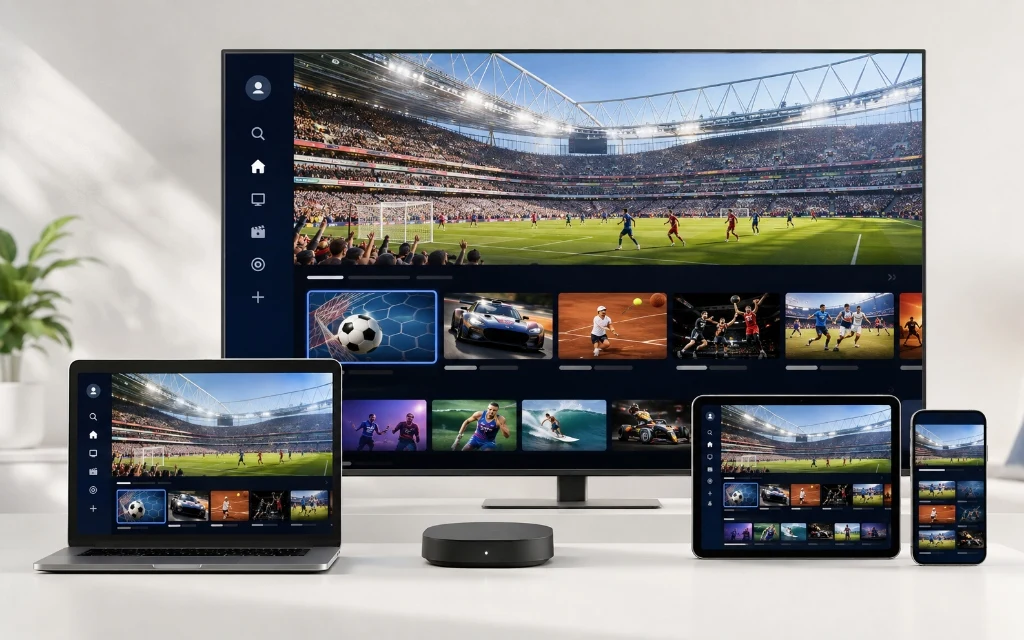
Smart TV, laptop, tablet and smartphone showing a multi-device streaming setup

The distinction matters: the Fire TV Stick is the device, the IPTV player is the software, and the IPTV provider supplies the service or playlist. Keeping these three parts separate makes troubleshooting much easier.

Why Is Firestick Popular for IPTV in the UK?

What You Need Before Setting Up IPTV on Firestick

If you want to test a service before committing to a longer plan, see the IPTV Free Trial UK page.

Firestick IPTV Setup: Quick Overview

Stage What You Do Result
1. Connect Plug Firestick into HDMI and power Firestick starts on the TV
2. Internet Connect to your Wi-Fi Device goes online
3. Player Install a compatible IPTV player IPTV interface is ready
4. Login Add provider details Playlist begins loading
5. Organise Check groups, favourites and EPG Navigation becomes easier
6. Test Play several channels and VOD items You can assess performance

How to Set Up Firestick IPTV Step by Step

Step 1: Connect the Firestick to Your TV

  • Plug the Fire TV Stick into an available HDMI port on your television.
  • Connect the Firestick to its power supply. If the TV's USB port does not provide sufficient power, use the supplied power adapter.
  • Select the correct HDMI input using your television remote.

Step 2: Complete the Initial Firestick Setup

  • Follow Amazon's on-screen instructions to pair the remote, select language and connect the device to your home network.
  • Install system updates when prompted. Keeping the Firestick current can help with compatibility and security.

Step 3: Connect the Firestick to Wi-Fi

  • Choose your home Wi-Fi network and enter the password carefully.
  • Use a strong 5 GHz connection when the router and Firestick location support it, although 2.4 GHz can sometimes provide better range.
  • Avoid placing the Firestick where the television or other equipment blocks the wireless signal.

Step 4: Choose a Compatible IPTV Player

  • Your IPTV provider may recommend a particular player or support several options.
  • Use an application appropriate for your Fire TV model and obtain software through a legitimate, trusted distribution route.
  • An IPTV player is separate from your IPTV subscription; installing a player does not automatically provide channels.

Step 5: Add Your IPTV Account or Playlist

  • Open the IPTV player and select its account or playlist option.
  • Depending on what your provider supplies, you may enter Xtream Codes details or an M3U playlist URL.
  • Enter the server address, username and password exactly as supplied. One incorrect character can result in an empty channel list.

Step 6: Let the Playlist Finish Loading

  • Large playlists can take longer to process than small ones.
  • Wait for Live TV categories, EPG information and VOD sections to finish synchronising before repeatedly closing the app.

Step 7: Test Your Favourite Channels

  • Start with channels you actually watch rather than checking only one random stream.
  • Test channel switching, picture quality, audio and EPG information.
  • If your subscription includes VOD, open several items to check browsing and playback.

For a broader device-by-device walkthrough, see the IPTV Setup Guide.

For TiViMate-specific configuration, see the TiviMate App Guide.

How to Add Xtream Codes on Firestick

Xtream Codes is a common login format used by IPTV players. The exact labels differ between applications, but the information normally includes a server URL, username and password.

  • Open your compatible IPTV player.
  • Choose Add User, Add Account, Xtream Codes API or a similarly named option.
  • Enter the server URL supplied by your provider.
  • Enter the username.
  • Enter the password.
  • Submit the details and wait for Live TV, Movies, Series or other available sections to load.

Only use credentials supplied for your own account. Do not share your login details publicly.

How to Add an M3U Playlist on Firestick

An M3U playlist is normally supplied as a URL. A compatible IPTV player reads the URL and creates the channel list. The wording can vary, but the general process is straightforward.

  • Open the IPTV player.
  • Choose Add Playlist or a similar option.
  • Select M3U URL / Remote Playlist if available.
  • Paste the complete M3U URL supplied by your provider.
  • Give the playlist a recognisable name.
  • Save it and wait for the channel list to load.

Firestick IPTV With TiViMate

TiViMate is designed for Android-based TV devices and is popular among users who want a television-style IPTV interface. It can organise live channels, EPG data, favourites and other supported sections in a familiar layout.

Read the full TiviMate App Guide for additional app guidance.

What Internet Speed Is Best for Firestick IPTV?

IPTV performance depends on more than download speed, but a stable connection gives your Firestick a better starting point.

Content Quality Practical Starting Point
SD Around 5 Mbps+
HD Around 10 Mbps+
Full HD Around 15–25 Mbps
4K Around 25–50 Mbps or more

These figures are practical guidelines rather than guarantees. Wi-Fi interference, router distance, household traffic, device performance, server-side conditions and the source stream can all influence playback.

How to Improve Firestick IPTV Performance

Firestick IPTV Buffering: Common Causes

Possible Cause What to Check
Weak Wi-Fi Move the Firestick/router or consider Ethernet
Network congestion Pause heavy downloads and other streams
Device load Restart the Firestick and close unused apps
App issue Update or restart the IPTV player
Single-channel problem Try several channels
EPG/library loading Allow large playlists time to synchronise
Provider-side issue Check whether multiple streams are affected

How to Fix IPTV Buffering on Firestick

Firestick IPTV: 4K Streaming Tips

A 4K-capable Firestick and television do not automatically make every IPTV channel 4K. The source stream must actually be provided at a suitable resolution, and your network and player must be able to handle it.

  • Use a 4K-capable Fire TV model and compatible television.
  • Use an HDMI connection and television input that support your required resolution.
  • Prefer a stable network over chasing the highest possible speed.
  • Test actual 4K-labelled content rather than assuming every channel is 4K.
  • Remember that upscaling HD content is not the same as receiving a native 4K stream.

Firestick IPTV EPG and Channel Organisation

An EPG, or Electronic Programme Guide, makes a large IPTV library easier to navigate. Once your playlist is loaded, check whether programme information is available and correctly aligned with your channels.

  • Refresh the EPG if programme information is missing.
  • Use favourites for frequently watched channels.
  • Browse channel groups instead of scrolling through the entire playlist.
  • Remove or hide unwanted categories if your player supports that feature.
  • Allow enough time for large playlists to finish synchronising.

You can also review the available UK categories in the UK IPTV Channels List.

Firestick IPTV vs Smart TV IPTV

Feature Firestick IPTV Built-in Smart TV IPTV
Hardware Separate streaming device Uses TV hardware
App choice Generally flexible Depends on TV platform/app store
Portability Easy to move Limited to the TV
Upgrading Replace/update stick Usually requires TV replacement for major hardware changes
Remote navigation Designed for TV use Designed for TV use
Best for Flexible IPTV setup Simple setup when a compatible app is available

If you prefer using the television's own apps, see our Smart TV Setup Guide.

Which Fire TV Stick Is Best for IPTV?

The right Fire TV model depends on your television, desired resolution and budget. A newer 4K-capable model is generally more suitable for users with a 4K television, while a basic model may be sufficient for standard HD viewing.

Is a VPN Required for IPTV on Firestick?

A VPN is not inherently required to use IPTV technology. Whether someone chooses to use one depends on their privacy preferences, network setup and applicable terms or laws.

A VPN can also add network overhead, so it should not be treated as a guaranteed cure for buffering. If playback is poor, troubleshoot the underlying connection first.

Firestick IPTV Security Tips

Firestick IPTV Troubleshooting Checklist

Problem First Things to Try
No channels appear Recheck credentials/playlist URL and refresh the playlist
Login fails Copy credentials again and check server URL
EPG is blank Refresh EPG and check provider support
Video buffers Test Wi-Fi, router load and another channel
App crashes Restart Firestick and update the app
Remote feels slow Restart Firestick and reduce background load
4K looks soft Confirm the source is actually 4K and check TV/device settings
VOD does not load Confirm VOD is included and refresh the library

Firestick IPTV FAQs

Yes. A compatible IPTV player can be installed on a Fire TV Stick and connected to the access details supplied by an IPTV provider.

You need a compatible Firestick, internet connection, IPTV player and valid subscription or trial credentials.

Install a compatible IPTV player, open its account or playlist section and enter the Xtream Codes or M3U details supplied by your provider.

No. The Firestick is streaming hardware. IPTV channels come from a separate service or provider.

TiViMate is designed for compatible Android-based TV devices, including Fire TV hardware, subject to the current supported installation method.

No. TiViMate is an IPTV player. You need a separate service or playlist to provide the content.

Yes, if the IPTV player you choose supports M3U or remote playlist URLs.

They are a login format used by compatible IPTV players, typically consisting of a server URL, username and password.

Common causes include weak Wi-Fi, network congestion, device load, player problems or an issue with a particular stream.

As a practical guide, around 10 Mbps or more is a reasonable starting point for HD, while 4K can require around 25–50 Mbps or more depending on the stream and network.

Yes, where the Fire TV model, television, player, connection and source stream all support 4K.

A television generally needs a compatible HDMI input and sufficient power/connection arrangements for the Firestick. The IPTV service itself also needs to support your chosen player and device.

It depends on the TV and application. A Firestick can offer a wider choice of streaming apps and an easier upgrade path, while a compatible built-in Smart TV app avoids extra hardware.

No universal VPN requirement exists. A VPN may be useful for certain privacy or network situations, but it is not a guaranteed fix for buffering.

IPTV is a technology for delivering content over internet networks. The key legal issue is whether a provider has the appropriate rights or permissions to distribute the copyrighted content it offers.

ZynaroTV promotes trial options that can allow customers to test compatibility and performance before choosing a longer subscription. Check the current trial terms before ordering.

View All IPTV FAQs

Ready to Use IPTV on Firestick?

Once your Firestick is connected, the setup is mainly about choosing a compatible IPTV player and entering the access details supplied by your provider. Take a few minutes to test your favourite channels, EPG, VOD and the connection at the times you normally watch.

If you are still comparing plans, see Cheapest IPTV UK or explore the Best IPTV UK guide before choosing.

Start 12-Hour Trial (WhatsApp) Compare Pricing Plans ➔